PWA (Progressive Web App): Implementation Guide
Monday, Dec 29, 2025
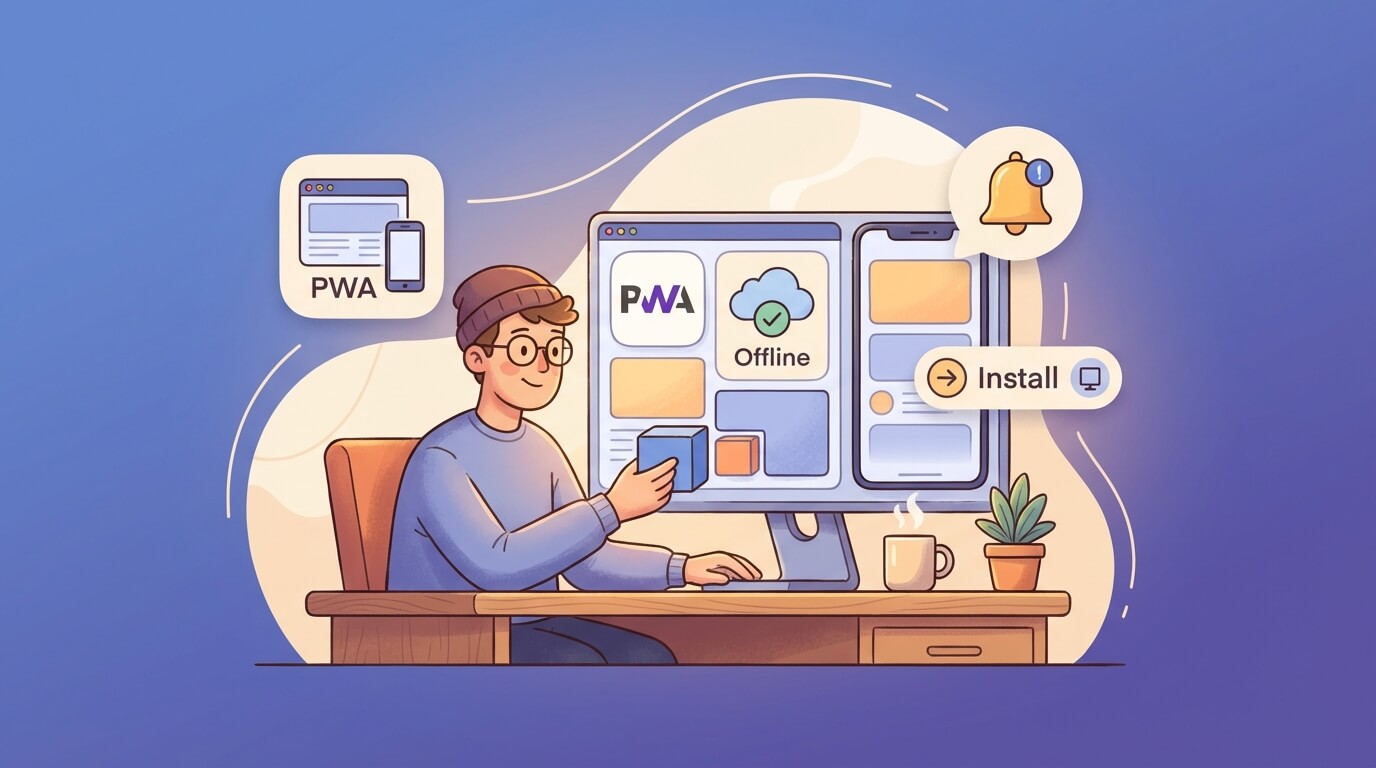
Progressive Web App (PWA) is a technology that enables your web app to run like a native app. Users can install it directly from the browser, access it offline, and receive push notifications. In 2025, PWAs are more relevant than ever as more businesses need cross-platform solutions without developing separate apps.
Why PWA?
Before diving into implementation, here’s why PWA is worth it:
- One codebase for all platforms - Web, Android, iOS from one project
- Installable - Users can “Add to Home Screen” without an app store
- Offline-capable - Can be accessed without internet
- Push notifications - Engage users like native apps
- Auto-update - No manual updates via app store needed
- Lighter weight - Size is much smaller than native apps
- SEO-friendly - Still indexable by search engines
Core PWA Technologies
PWA is built on 3 main technologies:
┌─────────────────────────────────────────┐
│           Progressive Web App            │
├─────────────────────────────────────────┤
│  1. Web App Manifest (manifest.json)    │
│  2. Service Workers (sw.js)             │
│  3. HTTPS (secure origin)               │
└─────────────────────────────────────────┘
Let’s discuss each one.
1. Web App Manifest
The manifest is a JSON file that tells the browser about your PWA. This file defines the name, icon, theme, and behavior when installed.
Create manifest.json
Place it in public/manifest.json:
{
  "name": "My Awesome PWA",
  "short_name": "MyPWA",
  "description": "An awesome app that works offline",
  "start_url": "/",
  "display": "standalone",
  "background_color": "#0a0a0a",
  "theme_color": "#a855f7",
  "orientation": "portrait-primary",
  "scope": "/",
  "icons": [
    {
      "src": "/icons/icon-72x72.png",
      "sizes": "72x72",
      "type": "image/png",
      "purpose": "maskable any"
    },
    {
      "src": "/icons/icon-96x96.png",
      "sizes": "96x96",
      "type": "image/png",
      "purpose": "maskable any"
    },
    {
      "src": "/icons/icon-128x128.png",
      "sizes": "128x128",
      "type": "image/png",
      "purpose": "maskable any"
    },
    {
      "src": "/icons/icon-144x144.png",
      "sizes": "144x144",
      "type": "image/png",
      "purpose": "maskable any"
    },
    {
      "src": "/icons/icon-152x152.png",
      "sizes": "152x152",
      "type": "image/png",
      "purpose": "maskable any"
    },
    {
      "src": "/icons/icon-192x192.png",
      "sizes": "192x192",
      "type": "image/png",
      "purpose": "maskable any"
    },
    {
      "src": "/icons/icon-384x384.png",
      "sizes": "384x384",
      "type": "image/png",
      "purpose": "maskable any"
    },
    {
      "src": "/icons/icon-512x512.png",
      "sizes": "512x512",
      "type": "image/png",
      "purpose": "maskable any"
    }
  ],
  "screenshots": [
    {
      "src": "/screenshots/desktop.png",
      "sizes": "1280x720",
      "type": "image/png",
      "form_factor": "wide"
    },
    {
      "src": "/screenshots/mobile.png",
      "sizes": "640x1136",
      "type": "image/png",
      "form_factor": "narrow"
    }
  ],
  "shortcuts": [
    {
      "name": "Dashboard",
      "short_name": "Dashboard",
      "url": "/dashboard",
      "icons": [{ "src": "/icons/dashboard.png", "sizes": "192x192" }]
    },
    {
      "name": "Settings",
      "short_name": "Settings",
      "url": "/settings",
      "icons": [{ "src": "/icons/settings.png", "sizes": "192x192" }]
    }
  ],
  "categories": ["productivity", "utilities"],
  "lang": "en-US",
  "dir": "ltr"
}
Link Manifest in HTML
<head>
  <link rel="manifest" href="/manifest.json" />
  <meta name="theme-color" content="#a855f7" />

  <!-- iOS specific -->
  <meta name="apple-mobile-web-app-capable" content="yes" />
  <meta name="apple-mobile-web-app-status-bar-style" content="black-translucent" />
  <meta name="apple-mobile-web-app-title" content="MyPWA" />
  <link rel="apple-touch-icon" href="/icons/icon-152x152.png" />

  <!-- Splash screens for iOS -->
  <link rel="apple-touch-startup-image" href="/splash/apple-splash-2048-2732.png"
        media="(device-width: 1024px) and (device-height: 1366px)" />
</head>
Display Modes
There are several options for display:
| Mode | Description |
|---|---|
fullscreen | Full screen, no browser UI at all |
standalone | Like a native app, has status bar but no address bar |
minimal-ui | Standalone + minimal navigation (back, reload) |
browser | Regular browser |
For most cases, standalone is the best choice.
2. Service Workers
Service Worker is JavaScript that runs in the background, separate from the main thread. This is what makes PWA capable of working offline, intercepting network requests, and handling push notifications.
Service Worker Lifecycle
┌──────────────┐    ┌──────────────┐    ┌──────────────┐
│   Register   │ => │   Install    │ => │   Activate   │
└──────────────┘    └──────────────┘    └──────────────┘
                           │                    │
                           ▼                    ▼
                    Cache assets         Claim clients
                                         Clean old cache
Basic Service Worker
Create public/sw.js:
const CACHE_NAME = 'my-pwa-v1';
const STATIC_ASSETS = [
  '/',
  '/offline.html',
  '/css/style.css',
  '/js/app.js',
  '/icons/icon-192x192.png'
];

// Install event - cache static assets
self.addEventListener('install', (event) => {
  console.log('Service Worker: Installing...');

  event.waitUntil(
    caches.open(CACHE_NAME)
      .then((cache) => {
        console.log('Service Worker: Caching static assets');
        return cache.addAll(STATIC_ASSETS);
      })
      .then(() => {
        // Skip waiting to activate immediately
        return self.skipWaiting();
      })
  );
});

// Activate event - cleanup old caches
self.addEventListener('activate', (event) => {
  console.log('Service Worker: Activating...');

  event.waitUntil(
    caches.keys().then((cacheNames) => {
      return Promise.all(
        cacheNames
          .filter((name) => name !== CACHE_NAME)
          .map((name) => {
            console.log('Service Worker: Deleting old cache:', name);
            return caches.delete(name);
          })
      );
    }).then(() => {
      // Claim all clients
      return self.clients.claim();
    })
  );
});

// Fetch event - intercept requests
self.addEventListener('fetch', (event) => {
  event.respondWith(
    caches.match(event.request)
      .then((cachedResponse) => {
        // Return cached version or fetch from network
        return cachedResponse || fetch(event.request);
      })
      .catch(() => {
        // Fallback to offline page for navigation requests
        if (event.request.mode === 'navigate') {
          return caches.match('/offline.html');
        }
      })
  );
});
Register Service Worker
In main JavaScript file or component:
// register-sw.js
if ('serviceWorker' in navigator) {
  window.addEventListener('load', async () => {
    try {
      const registration = await navigator.serviceWorker.register('/sw.js', {
        scope: '/'
      });

      console.log('SW registered:', registration.scope);

      // Check for updates
      registration.addEventListener('updatefound', () => {
        const newWorker = registration.installing;

        newWorker.addEventListener('statechange', () => {
          if (newWorker.state === 'installed' && navigator.serviceWorker.controller) {
            // New version available
            showUpdateNotification();
          }
        });
      });
    } catch (error) {
      console.error('SW registration failed:', error);
    }
  });
}

function showUpdateNotification() {
  // Show UI to reload
  const updateBanner = document.createElement('div');
  updateBanner.innerHTML = `
    <div class="update-banner">
      <p>Update available!</p>
      <button onclick="window.location.reload()">Refresh</button>
    </div>
  `;
  document.body.appendChild(updateBanner);
}
3. Caching Strategies
Caching strategy determines how PWA handles requests. Choose based on content type.
Cache First (Cache Falling Back to Network)
Best for: Static assets (CSS, JS, images, fonts)
self.addEventListener('fetch', (event) => {
  event.respondWith(
    caches.match(event.request)
      .then((cachedResponse) => {
        if (cachedResponse) {
          return cachedResponse;
        }

        return fetch(event.request).then((response) => {
          // Clone response because it can only be read once
          const responseClone = response.clone();

          caches.open(CACHE_NAME).then((cache) => {
            cache.put(event.request, responseClone);
          });

          return response;
        });
      })
  );
});
Network First (Network Falling Back to Cache)
Best for: API calls, dynamic content that must be fresh
self.addEventListener('fetch', (event) => {
  event.respondWith(
    fetch(event.request)
      .then((response) => {
        // Cache the fresh response
        const responseClone = response.clone();
        caches.open(CACHE_NAME).then((cache) => {
          cache.put(event.request, responseClone);
        });
        return response;
      })
      .catch(() => {
        // Network failed, fallback to cache
        return caches.match(event.request);
      })
  );
});
Stale While Revalidate
Best for: Content that can be stale briefly (news feed, social posts)
self.addEventListener('fetch', (event) => {
  event.respondWith(
    caches.open(CACHE_NAME).then((cache) => {
      return cache.match(event.request).then((cachedResponse) => {
        const fetchPromise = fetch(event.request).then((networkResponse) => {
          cache.put(event.request, networkResponse.clone());
          return networkResponse;
        });

        // Return cached version immediately, update in background
        return cachedResponse || fetchPromise;
      });
    })
  );
});
Strategy Router
More advanced implementation with routing:
// sw.js with strategy router
const strategies = {
  cacheFirst: async (request, cacheName) => {
    const cache = await caches.open(cacheName);
    const cached = await cache.match(request);
    if (cached) return cached;

    const response = await fetch(request);
    cache.put(request, response.clone());
    return response;
  },

  networkFirst: async (request, cacheName, timeout = 3000) => {
    const cache = await caches.open(cacheName);

    try {
      const controller = new AbortController();
      const timeoutId = setTimeout(() => controller.abort(), timeout);

      const response = await fetch(request, { signal: controller.signal });
      clearTimeout(timeoutId);

      cache.put(request, response.clone());
      return response;
    } catch {
      return cache.match(request);
    }
  },

  staleWhileRevalidate: async (request, cacheName) => {
    const cache = await caches.open(cacheName);
    const cached = await cache.match(request);

    const fetchPromise = fetch(request).then((response) => {
      cache.put(request, response.clone());
      return response;
    });

    return cached || fetchPromise;
  }
};

self.addEventListener('fetch', (event) => {
  const { request } = event;
  const url = new URL(request.url);

  // Static assets - Cache First
  if (request.destination === 'style' ||
      request.destination === 'script' ||
      request.destination === 'image') {
    event.respondWith(strategies.cacheFirst(request, 'static-v1'));
    return;
  }

  // API calls - Network First
  if (url.pathname.startsWith('/api/')) {
    event.respondWith(strategies.networkFirst(request, 'api-v1'));
    return;
  }

  // HTML pages - Stale While Revalidate
  if (request.mode === 'navigate') {
    event.respondWith(strategies.staleWhileRevalidate(request, 'pages-v1'));
    return;
  }
});
4. Offline Functionality
Create a user-friendly offline page:
<!-- public/offline.html -->
<!DOCTYPE html>
<html lang="en">
<head>
  <meta charset="UTF-8">
  <meta name="viewport" content="width=device-width, initial-scale=1.0">
  <title>Offline - MyPWA</title>
  <style>
    * {
      margin: 0;
      padding: 0;
      box-sizing: border-box;
    }

    body {
      font-family: -apple-system, BlinkMacSystemFont, 'Segoe UI', Roboto, sans-serif;
      background: linear-gradient(135deg, #0a0a0a 0%, #1a1a2e 100%);
      min-height: 100vh;
      display: flex;
      align-items: center;
      justify-content: center;
      color: #fff;
    }

    .container {
      text-align: center;
      padding: 2rem;
    }

    .icon {
      font-size: 4rem;
      margin-bottom: 1rem;
    }

    h1 {
      font-size: 1.5rem;
      margin-bottom: 0.5rem;
    }

    p {
      color: #9ca3af;
      margin-bottom: 1.5rem;
    }

    button {
      background: #a855f7;
      color: white;
      border: none;
      padding: 0.75rem 1.5rem;
      border-radius: 0.5rem;
      cursor: pointer;
      font-size: 1rem;
    }

    button:hover {
      background: #9333ea;
    }
  </style>
</head>
<body>
  <div class="container">
    <div class="icon">📡</div>
    <h1>You're Offline</h1>
    <p>Check your internet connection and try again.</p>
    <button onclick="window.location.reload()">Retry</button>
  </div>

  <script>
    // Auto-reload when back online
    window.addEventListener('online', () => {
      window.location.reload();
    });
  </script>
</body>
</html>
5. PWA with Next.js (next-pwa)
Next.js has great integration with PWA through the next-pwa package.
Setup next-pwa
npm install next-pwaConfigure next.config.js
// next.config.js
const withPWA = require('next-pwa')({
  dest: 'public',
  register: true,
  skipWaiting: true,
  disable: process.env.NODE_ENV === 'development',

  // Runtime caching
  runtimeCaching: [
    {
      urlPattern: /^https:\/\/fonts\.(?:gstatic|googleapis)\.com\/.*/i,
      handler: 'CacheFirst',
      options: {
        cacheName: 'google-fonts',
        expiration: {
          maxEntries: 10,
          maxAgeSeconds: 60 * 60 * 24 * 365 // 1 year
        }
      }
    },
    {
      urlPattern: /\.(?:eot|otf|ttc|ttf|woff|woff2|font.css)$/i,
      handler: 'StaleWhileRevalidate',
      options: {
        cacheName: 'static-fonts',
        expiration: {
          maxEntries: 10,
          maxAgeSeconds: 60 * 60 * 24 * 7 // 1 week
        }
      }
    },
    {
      urlPattern: /\.(?:jpg|jpeg|gif|png|svg|ico|webp)$/i,
      handler: 'StaleWhileRevalidate',
      options: {
        cacheName: 'static-images',
        expiration: {
          maxEntries: 100,
          maxAgeSeconds: 60 * 60 * 24 * 30 // 30 days
        }
      }
    },
    {
      urlPattern: /\/_next\/image\?url=.+$/i,
      handler: 'StaleWhileRevalidate',
      options: {
        cacheName: 'next-images',
        expiration: {
          maxEntries: 100,
          maxAgeSeconds: 60 * 60 * 24 * 30
        }
      }
    },
    {
      urlPattern: /\.(?:js|css)$/i,
      handler: 'StaleWhileRevalidate',
      options: {
        cacheName: 'static-resources',
        expiration: {
          maxEntries: 50,
          maxAgeSeconds: 60 * 60 * 24 * 7
        }
      }
    },
    {
      urlPattern: /^https:\/\/api\.yoursite\.com\/.*/i,
      handler: 'NetworkFirst',
      options: {
        cacheName: 'api-cache',
        networkTimeoutSeconds: 10,
        expiration: {
          maxEntries: 50,
          maxAgeSeconds: 60 * 60 // 1 hour
        },
        cacheableResponse: {
          statuses: [0, 200]
        }
      }
    }
  ]
});

module.exports = withPWA({
  reactStrictMode: true,
  // other Next.js config
});
Metadata in layout.tsx
// app/layout.tsx
import type { Metadata, Viewport } from 'next';

export const viewport: Viewport = {
  themeColor: '#a855f7',
  width: 'device-width',
  initialScale: 1,
  maximumScale: 1,
  userScalable: false,
};

export const metadata: Metadata = {
  title: 'My Next.js PWA',
  description: 'PWA built with Next.js',
  manifest: '/manifest.json',
  appleWebApp: {
    capable: true,
    statusBarStyle: 'black-translucent',
    title: 'NextPWA',
  },
  formatDetection: {
    telephone: false,
  },
  openGraph: {
    type: 'website',
    siteName: 'My Next.js PWA',
    title: 'My Next.js PWA',
    description: 'PWA built with Next.js',
  },
};

export default function RootLayout({
  children,
}: {
  children: React.ReactNode;
}) {
  return (
    <html lang="en">
      <head>
        <link rel="apple-touch-icon" href="/icons/icon-152x152.png" />
      </head>
      <body>{children}</body>
    </html>
  );
}
6. Testing PWA with Lighthouse
Lighthouse is the best tool for auditing PWAs. It can be accessed via Chrome DevTools.
Running Lighthouse Audit
- Open Chrome DevTools (F12)
- Go to “Lighthouse” tab
- Select category “Progressive Web App”
- Click “Analyze page load”
PWA Checklist
Lighthouse will check:
| Requirement | Description |
|---|---|
| ✅ HTTPS | Site must be served via HTTPS |
| ✅ Service Worker | SW registered and controlling page |
| ✅ Web App Manifest | Valid manifest with required fields |
| ✅ Icons | Minimum 192x192 and 512x512 |
| ✅ Start URL | start_url in manifest |
| ✅ Splash Screen | Background color + icons |
| ✅ Theme Color | Theme color in manifest |
| ✅ Viewport | Proper viewport meta tag |
| ✅ Content Sized | No horizontal scroll |
| ✅ Offline | Works offline (200 response) |
7. iOS Considerations
iOS Safari has some limitations for PWAs:
iOS Limitations
- No Push Notifications (iOS 16.4+ finally supports it, but limited)
- No Background Sync
- Storage limit ~50MB per origin
- No install prompt - must manually “Add to Home Screen”
- Separate WebView - doesn’t share cookies/storage with Safari
Workarounds
<!-- iOS-specific meta tags -->
<head>
  <!-- Enable standalone mode -->
  <meta name="apple-mobile-web-app-capable" content="yes" />

  <!-- Status bar style -->
  <meta name="apple-mobile-web-app-status-bar-style" content="black-translucent" />

  <!-- App title -->
  <meta name="apple-mobile-web-app-title" content="MyPWA" />

  <!-- Disable auto-detection -->
  <meta name="format-detection" content="telephone=no" />

  <!-- Touch icons -->
  <link rel="apple-touch-icon" href="/icons/icon-180x180.png" />

  <!-- Splash screens -->
  <link rel="apple-touch-startup-image"
        href="/splash/apple-splash-1170-2532.png"
        media="(device-width: 390px) and (device-height: 844px) and (-webkit-device-pixel-ratio: 3)" />
</head>
Detect iOS Standalone Mode
function isIOSStandalone() {
  return (
    window.navigator.standalone === true ||
    window.matchMedia('(display-mode: standalone)').matches
  );
}

// Show iOS install instructions
function showIOSInstallGuide() {
  const isIOS = /iPad|iPhone|iPod/.test(navigator.userAgent);
  const isInStandalone = isIOSStandalone();

  if (isIOS && !isInStandalone) {
    showModal({
      title: 'Install App',
      content: `
        <ol>
          <li>Tap the Share button in Safari</li>
          <li>Scroll and tap "Add to Home Screen"</li>
          <li>Tap "Add" to confirm</li>
        </ol>
      `
    });
  }
}
Best Practices Summary
✅ DO:
- Cache critical assets on install
- Implement proper caching strategies
- Handle offline gracefully
- Use HTTPS everywhere
- Test on various devices and browsers
- Monitor performance with analytics
- Provide clear install instructions for iOS

❌ DON'T:
- Cache everything (storage limit!)
- Ignore service worker updates
- Forget about iOS users
- Skip Lighthouse audits
- Use localStorage for large data
- Assume push notification support
Conclusion
PWA is a powerful way to deliver app-like experience without the complexity of native development. In 2025, with increasing support from browsers and platforms, PWA is becoming a sensible choice for many use cases.
Key takeaways:
- Manifest + Service Worker + HTTPS = PWA foundation
- Choose the right caching strategy for each resource type
- Offline experience must be user-friendly
- Strategic install prompt increases adoption
- Test with Lighthouse to ensure compliance
- iOS needs extra attention due to Safari limitations
- PWABuilder can help distribute to app stores
Start with the basics, and iteratively add features based on user needs. Happy building! 🚀